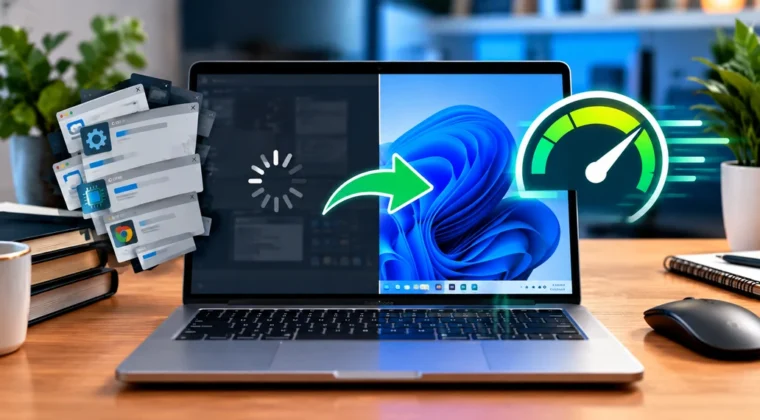
A sluggish computer can turn simple tasks into frustrating experiences — long load times, freezing applications, and endless spinning wheels. Before you consider buying a brand-new machine, there are several practical steps you can take to dramatically improve performance. This guide walks through exactly how to speed up a slow computer, from simple software fixes to hardware upgrades worth considering.
Why Computers Slow Down Over Time
Understanding the root causes helps you target the right fixes. Common reasons computers slow down include:
- Too many programs running automatically at startup
- Accumulated temporary files and cache clutter
- A nearly full hard drive with little free space
- Outdated software or operating system
- Malware or unwanted background processes
- Aging hardware that can’t keep up with modern software demands
Let’s walk through the solutions step by step, starting with the easiest and moving toward more advanced options.
Step 1: Restart Your Computer Regularly
It sounds simple, but many people leave their computers running for days or weeks without restarting. Over time, this causes:
- Memory (RAM) to fill up with data from programs that were never properly closed
- Background processes to accumulate and consume resources unnecessarily
- Temporary glitches in the operating system to build up
Restarting clears active memory and gives your system a clean slate, often providing an immediate performance boost.
Step 2: Disable Unnecessary Startup Programs
Many applications automatically launch when you turn on your computer, silently consuming resources in the background even when you’re not using them. To fix this:
On Windows:
- Open Task Manager (Ctrl + Shift + Esc)
- Go to the “Startup” tab
- Disable any programs you don’t need running immediately at boot
On Mac:
- Go to System Settings > General > Login Items
- Remove unnecessary applications from the startup list
Disabling unused startup programs is often one of the single most effective ways to speed up boot times and free up ongoing system resources.
Step 3: Free Up Storage Space
A hard drive that’s nearly full can significantly slow down your computer, particularly on traditional hard disk drives (HDDs). To free up space:
- Delete unused applications and large files you no longer need
- Clear your downloads folder of old files
- Empty the recycle bin or trash regularly
- Use built-in disk cleanup tools (Disk Cleanup on Windows, Storage Management on Mac)
- Move large files like videos and photos to external storage or cloud backup
As a general rule, try to keep at least 15-20% of your drive free for optimal performance.
Step 4: Remove Malware and Unwanted Programs
Malicious software can significantly degrade performance while running hidden processes in the background. Steps to address this:
- Run a full scan using a reputable antivirus or anti-malware program
- Uninstall any unfamiliar programs you don’t remember installing
- Check browser extensions and remove any that seem suspicious or unnecessary
- Reset your browser settings if you notice unusual redirects or pop-ups
For more on protecting your devices from threats in the first place, visit our Cybersecurity category.
Step 5: Update Your Operating System and Drivers
Outdated software can cause compatibility issues and missed performance optimizations. Make sure to:
- Install the latest operating system updates, which often include performance improvements and bug fixes
- Update device drivers, especially for graphics cards, which can significantly impact overall system responsiveness
- Keep frequently used applications updated to their latest versions
Step 6: Manage Browser Tabs and Extensions
Web browsers are often major resource consumers, especially with many tabs open simultaneously. To improve browser performance:
- Close tabs you’re not actively using
- Disable or remove unnecessary browser extensions
- Clear your browser cache and cookies periodically
- Consider using a lighter-weight browser if your system struggles with resource-heavy options
Step 7: Upgrade Your RAM
If your computer still feels sluggish after software-based fixes, insufficient RAM (memory) could be the culprit, especially if you frequently multitask or run demanding applications. Signs you may need more RAM include:
- Programs freezing or crashing when multiple applications are open
- Noticeable slowdowns when switching between tasks
- The system relying heavily on virtual memory (using your hard drive as extra RAM, which is much slower)
Upgrading RAM is often one of the most cost-effective hardware improvements you can make, particularly for older laptops and desktops that support upgrades.
Step 8: Switch from a Hard Drive (HDD) to a Solid-State Drive (SSD)
If your computer still uses a traditional hard disk drive, upgrading to a solid-state drive can provide one of the most dramatic performance improvements available. SSDs offer:
- Significantly faster boot times
- Much quicker application loading
- Improved overall system responsiveness
- Better durability with no moving parts
For older computers, an SSD upgrade combined with additional RAM can often make a machine feel almost new again, at a fraction of the cost of buying a replacement.
Step 9: Check for Overheating Issues
Overheating can cause computers to throttle performance automatically to protect internal components. To prevent this:
- Ensure vents and fans are free of dust buildup — clean them periodically with compressed air
- Use your laptop on hard, flat surfaces that allow proper airflow rather than soft surfaces like beds or couches
- Consider a cooling pad for laptops that run hot during demanding tasks
- Monitor internal temperatures using free diagnostic software if you suspect overheating
Step 10: Consider a Clean Operating System Reinstall
If performance issues persist despite trying everything above, a clean reinstall of your operating system can resolve deep-seated software issues that accumulate over years of use. Before doing this:
- Back up all important files and documents
- Note down licenses and account credentials for software you’ll need to reinstall
- Consider whether a full reinstall is necessary or if a “reset” option (available on both Windows and Mac) might be sufficient
When to Consider Replacing Your Computer
If you’ve tried all the steps above and performance still isn’t satisfactory, it may be time to consider a replacement, particularly if:
- Your computer is more than 6-7 years old
- Hardware upgrades aren’t supported or cost nearly as much as a new machine
- You consistently need performance the hardware simply can’t provide, even after optimization
Frequently Asked Questions
How often should I restart my computer? Restarting at least once every few days is generally recommended, especially if you tend to leave your computer running continuously.
Will upgrading RAM alone fix a slow computer? It depends on the cause. If insufficient memory is the bottleneck, yes — but if the issue is a slow hard drive or malware, RAM alone won’t fully resolve the problem.
Is it safe to disable all startup programs? Not entirely — some startup programs, like antivirus software, are important to keep running. Only disable programs you recognize and don’t need immediately at boot.
Conclusion
Learning how to speed up a slow computer doesn’t always require an expensive new purchase. By systematically working through software optimizations, storage management, and targeted hardware upgrades like RAM or an SSD, most computers can see significant performance improvements. For more practical technology guides, explore our full How-To / Tips & Tricks category on Today Tech Times.