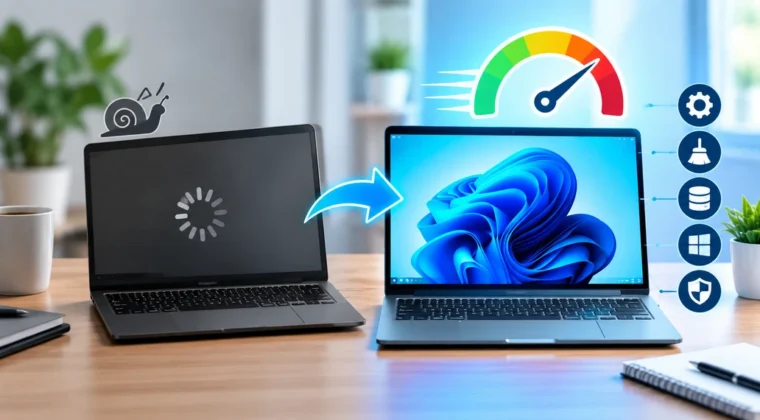
A laptop that takes forever to boot, freezes mid-task, or struggles to run a simple browser with more than a few tabs open is one of the most common tech frustrations people deal with. The good news is that most slowdowns aren’t a sign your laptop is dying — they’re usually the result of software clutter, background processes, or a storage drive that’s quietly become a bottleneck. Before you spend money on a new machine, it’s worth working through a proper troubleshooting checklist. Below are ten fixes, roughly ordered from easiest to most involved, that reliably speed up a slow laptop or desktop in 2026.
1. Restart Properly (Not Just Sleep)
It sounds almost too simple, but constantly putting a laptop to sleep instead of fully restarting it lets background processes, memory leaks, and temporary files pile up over days or weeks. A full restart clears RAM and closes stuck processes that quietly eat up CPU cycles in the background. If your laptop feels sluggish and you can’t remember the last time you actually restarted it rather than just closing the lid, that’s the first thing to try.
2. Audit Your Startup Programs
One of the most common causes of a slow-booting, sluggish laptop is too many applications launching automatically when you log in. Chat apps, cloud storage clients, update checkers, and even printer software often set themselves to auto-start without asking. On Windows, this can be managed through the Startup tab in Task Manager; on macOS, it’s under System Settings → General → Login Items. Disabling anything you don’t need running constantly can noticeably cut boot time and free up memory for the programs you actually use.
3. Check What’s Actually Using Your Resources
Rather than guessing what’s slowing your machine down, open Task Manager (Ctrl+Shift+Esc on Windows) or Activity Monitor (on macOS) and sort processes by CPU and memory usage. It’s common to find a browser with dozens of open tabs, an update service stuck in a loop, or an antivirus scan running silently in the background consuming far more resources than expected. Identifying the actual culprit saves you from making changes that don’t address the real problem.
4. Clear Out Storage — Especially on an SSD
Modern laptops with solid-state drives (SSDs) can slow down noticeably once storage gets close to full, since the drive needs free space to manage data efficiently. As a general rule, try to keep at least 10-15% of your drive free. Use built-in tools like Windows’ Storage Sense or macOS’s Storage Management to find large, unused files, old downloads, and duplicate photos or videos that are quietly eating up space. Moving large media libraries to an external drive or cloud storage is often the fastest way to reclaim significant space.
5. Run a Malware and Adware Scan
Unwanted background processes from adware, browser extensions, or malware are a surprisingly common — and often overlooked — cause of a slow computer. These programs frequently run silently, consuming CPU and network bandwidth without any obvious symptoms beyond general sluggishness. Running a full scan with a reputable security tool, and reviewing installed browser extensions for anything unfamiliar, is a step worth taking any time a laptop’s performance drops without an obvious cause. For a deeper look at how these threats have evolved, see our guide on cybersecurity threats in 2026.
6. Update Your Operating System and Drivers
Outdated graphics drivers, chipset drivers, and operating system versions can all contribute to poor performance, especially on laptops handling demanding tasks like video calls or light gaming. Manufacturers regularly release performance and stability improvements through updates, and skipping them means missing out on legitimate speed gains, not just security patches. Check your laptop manufacturer’s support page for the latest driver packages rather than relying solely on generic OS-level updates.
7. Disable Visual Effects You Don’t Need
Both Windows and macOS include animations, transparency effects, and visual flourishes that look nice but consume system resources — particularly on laptops with integrated graphics rather than a dedicated GPU. On Windows, you can adjust this under System → Advanced System Settings → Performance Options, choosing “Adjust for best performance” or manually disabling specific effects. On older or lower-spec machines, this simple change can produce a surprisingly noticeable improvement in day-to-day responsiveness.
8. Upgrade Your RAM if Possible
If your laptop is a few years old and still running with 8GB of RAM, insufficient memory is very likely your biggest bottleneck — especially with how memory-hungry modern browsers and AI-powered apps have become. Many laptops (though not all, particularly newer ultra-thin models with soldered memory) allow RAM upgrades. Adding memory is one of the most cost-effective hardware upgrades you can make, often producing a more noticeable improvement than a faster processor would.
9. Switch From a Hard Drive to an SSD
If your laptop still uses a traditional spinning hard disk drive (HDD) rather than a solid-state drive, this is very likely the single biggest factor behind slow boot times and sluggish app loading. Upgrading from an HDD to an SSD is widely considered one of the most impactful upgrades available for an older laptop, often cutting boot times from minutes to seconds. Even a budget SATA SSD represents a massive leap over a mechanical hard drive for everyday responsiveness.
10. Reset or Reinstall the Operating System
If you’ve worked through the steps above and your laptop is still sluggish, a clean operating system reinstall can clear out years of accumulated software clutter, broken registry entries, and misconfigured settings that are difficult to track down individually. Both Windows and macOS include built-in “reset” options that let you reinstall the OS while optionally keeping personal files. Back up your important data first, but a clean install is often the closest thing to giving an older laptop a genuine second life without replacing the hardware.
When It’s Time to Consider a New Laptop
If you’ve tried all of the above and performance still isn’t acceptable — particularly if your laptop is more than five or six years old, has a processor that no longer receives meaningful driver support, or simply can’t be upgraded with more RAM or a faster drive — it may genuinely be time to consider a replacement rather than continuing to patch an aging machine. If you’re shopping for a new device, our coverage of the biggest smartphone and device launches of September 2026 is a useful starting point for what’s currently available, even though it focuses primarily on phones.
Frequently Asked Questions
Why is my laptop suddenly running slow? Sudden slowdowns are often caused by a pending update stuck in the background, a full storage drive, malware, or too many startup programs. Checking Task Manager or Activity Monitor for resource-heavy processes is usually the fastest way to identify the cause.
Does clearing browser cache actually speed up a laptop? It can help, particularly if your browser has accumulated a large amount of cached data over time, but it’s rarely a major fix on its own. It’s most useful in combination with closing unused tabs and disabling unnecessary extensions.
Is upgrading RAM or switching to an SSD more effective? For most users, switching from a hard drive to an SSD produces the more dramatic, noticeable improvement, particularly for boot times and app loading. However, if you’re already on an SSD and frequently run out of memory with multiple apps open, a RAM upgrade will likely help more.
How often should I restart my laptop? Restarting at least once every few days, rather than only using sleep mode, helps prevent the gradual buildup of memory leaks and stuck background processes that contribute to slowdowns over time.
Conclusion
Most laptops that feel painfully slow aren’t actually failing — they’re simply bogged down by accumulated software clutter, insufficient memory, or an outdated storage drive. Working through these fixes in order, starting with the simplest software changes before considering hardware upgrades, will resolve the vast majority of everyday performance complaints without needing to buy a new machine.